Technical SEO audit checklist: 14 checks in the right order
A practical technical SEO audit checklist: crawlability, indexing, canonicals, redirects, Core Web Vitals, structured data and JavaScript, run with AI.
Most technical SEO checklists are either too short to be useful or so long that nobody finishes them. Two hundred items, all marked "important", and no hint about which ones actually stop a page from ranking.
A technical audit answers one question: can search engines find, crawl, render and index the pages you want found, and understand which version of each page is the real one? Everything else is secondary. Speed and structured data matter, but a page that is not indexed has no rankings to improve.
This checklist runs in that order. Each check says what to look for, how to spot it and what to do about it. At the end is a workflow for running the whole thing with SEO Sauna's site audit and an AI assistant.
Before you start
Gather three things first:
- A full crawl of the site. A site audit tool that follows links like a search engine does.
- Google Search Console access. The crawl shows what is on the site; Search Console shows what Google did with it.
- A list of the pages that matter. Your money pages, top traffic pages and key templates (product, category, article, location). An audit that treats every URL as equally important wastes your time.
If the crawl comes back suspiciously small, stop and find out why before reading any issues. Bot protection, rate limits and firewalls often throttle audit crawlers. On Shopify it is common; see the Shopify SEO audit guide for the fix.
1. Crawlability
Can a crawler reach your pages by following links?
- Pages that exist but have no internal links pointing to them (orphan pages) are hard for Google to discover.
- Navigation built only with JavaScript click handlers, not real
<a href>links, may not be followed. - Important pages more than four or five clicks from the home page get crawled less.
- Compare the crawl's page count with your sitemap and your CMS. A big gap means something is hiding pages.
2. Robots.txt
Open yoursite.com/robots.txt and read it line by line.
- Make sure no
Disallowrule blocks important sections. A leftoverDisallow: /from a staging site is the classic disaster. - Do not block CSS or JavaScript files that Google needs to render pages.
- Remember that robots.txt blocks crawling, not indexing. A blocked URL can still appear in results if other sites link to it, and Google cannot see a noindex tag on a page it is not allowed to crawl.
- Check that the file lists your sitemap.
3. Indexability
Can each important page be indexed?
- Look for
noindexin meta robots tags and inX-Robots-TagHTTP headers. The header version is easy to miss. - Check that pages you want indexed return status 200, not a redirect or an error.
- In Search Console, open the Pages report and read the reasons for "not indexed". "Crawled, currently not indexed" usually means Google saw the page and did not think it was worth keeping, which is a content problem, not a technical one.
4. Canonicals
Canonical tags tell Google which URL is the main version when several URLs show the same content.
- Every indexable page should have a self-referencing canonical, or point to the correct main version.
- Canonicals should point to URLs that return 200 and are indexable. A canonical to a redirect, a 404 or a noindex page sends mixed signals.
- Watch for conflicts: a canonical that says one thing while the sitemap, internal links and hreflang say another.
- Check common duplicate sources:
httpandhttps,wwwand the bare domain, trailing slashes, uppercase letters, tracking parameters, and print or sort versions.
Google treats a canonical as a hint, not an order. URL inspection in Search Console shows which canonical Google actually chose.
5. Status codes
- 4xx errors: internal links to pages that no longer exist. Fix the links, or redirect the old URL if it had traffic or backlinks.
- 5xx errors: server errors. Even occasional ones make Google crawl less. If they appear in the crawl, check server logs and hosting limits.
- Soft 404s: pages that return 200 but show "not found" or empty content. Search Console reports these.
6. Redirects
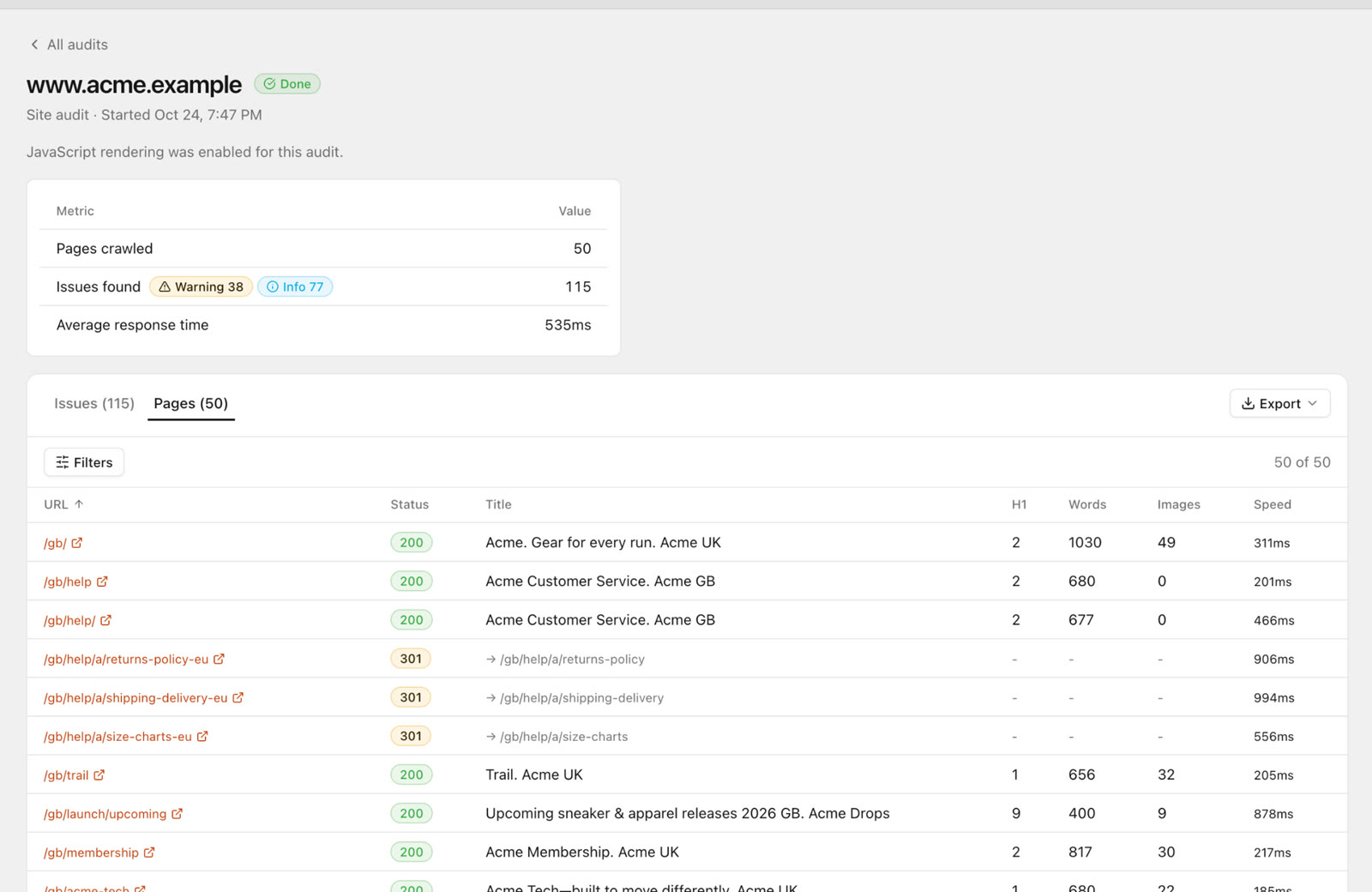
- Use 301 (permanent) redirects for moved content. 302s are for genuinely temporary moves.
- Fix redirect chains (A → B → C) by pointing A straight to C, and update internal links to the final URL.
- Redirect loops stop crawlers completely. They usually come from conflicting rules, for example one forcing
wwwand another removing it. - After a migration, check that every old URL with traffic or links redirects to its closest equivalent, not to the home page.
7. Titles and meta descriptions
These are on-page items, but templates usually cause the problems, which makes them technical.
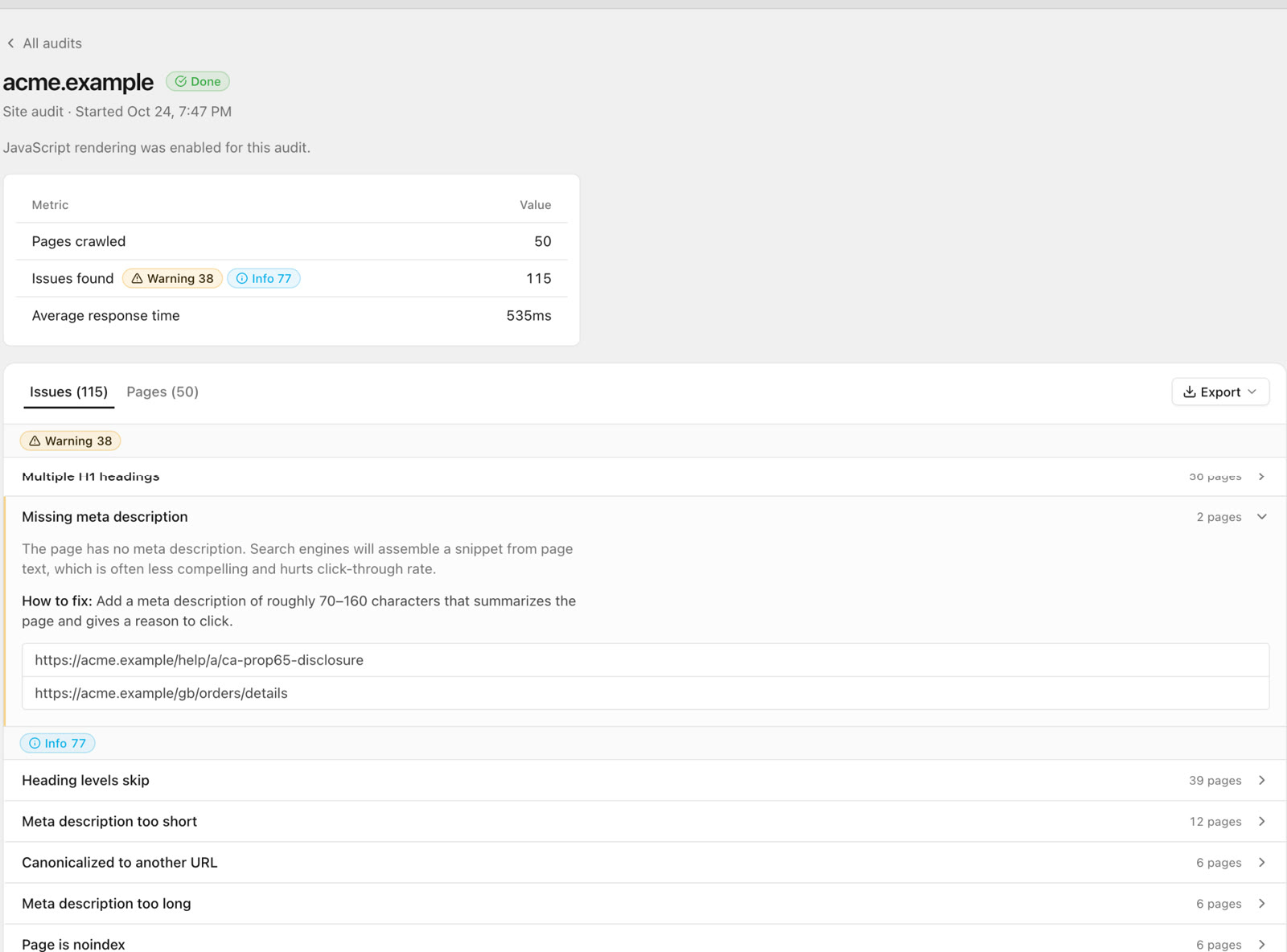
- Missing titles, duplicate titles across many pages, titles that are too long or too short.
- Missing or duplicate meta descriptions. Google rewrites many descriptions, but a good one still improves the snippet more often than not.
- Templates that produce the same title for every page in a category or every page of a paginated list.
8. Headings
- One clear H1 per page that says what the page is about.
- No logo or site name wrapped in an H1 on every page.
- A heading structure that follows the content, so the page is easy to scan for people and parsers alike.
9. Internal links
Internal links decide how authority flows through your site and which pages Google sees as important.
- Find important pages with few internal links and link to them from relevant, strong pages.
- Fix internal links that point to redirects or errors.
- Use descriptive anchor text. "Shopify SEO audit checklist" tells Google more than "click here".
- Check that navigation and breadcrumbs link to canonical URLs, not parameter or duplicate versions.
10. Images
- Alt text on meaningful images, describing what the image shows. Decorative images can have empty alt text.
- Images in modern formats (WebP or AVIF) and sized to the space they fill.
- Width and height attributes set, so the layout does not jump while images load.
- Lazy loading for images below the fold, but not for the main image at the top.
11. Core Web Vitals and speed
Google measures three Core Web Vitals from real Chrome users:
| Metric | What it measures | Good |
|---|---|---|
| LCP (Largest Contentful Paint) | How fast the main content appears | 2.5 s or less |
| INP (Interaction to Next Paint) | How fast the page responds to taps and clicks | 200 ms or less |
| CLS (Cumulative Layout Shift) | How much the layout jumps while loading | 0.1 or less |
- Start with the Core Web Vitals report in Search Console, which groups URLs by template. Fixing one template fixes many pages.
- Use Lighthouse for lab diagnostics, but remember that field data is what counts.
- Check server response time. A slow first byte delays everything that follows.
- The usual culprits: oversized images, render-blocking scripts, too many third-party tags and web fonts loading late.
12. Structured data
- Add the schema types that match your content: Organization, Product, Article, LocalBusiness, BreadcrumbList, FAQ where it fits.
- Validate with Google's Rich Results Test and check the enhancement reports in Search Console.
- Structured data must match what is visible on the page. Prices, ratings and availability in the markup that differ from the page are a policy problem.
- Watch for duplicates, for example a theme and a plugin both outputting Product schema.
13. XML sitemaps
- The sitemap should list only canonical, indexable URLs that return 200.
- No redirected, noindexed or blocked URLs in it. Each one tells Google the sitemap cannot be trusted.
- Submit it in Search Console and compare "discovered" with "indexed".
- Large sites should split sitemaps by type (products, categories, articles) so indexing problems show up per section.
14. JavaScript rendering
If your site relies on JavaScript to show content, check what a crawler sees without running it.
- Compare the raw HTML with the rendered page. If titles, main text or links appear only after JavaScript runs, Google has to render the page to see them, which can delay indexing.
- Make sure important links are real
<a href>elements in the HTML. - Use URL inspection in Search Console to view the HTML Google rendered and spot missing content.
- Server-side rendering or static generation removes most of these risks for content pages.
Finish with Search Console URL inspection
Pick 10 to 20 URLs: your key templates plus any page the crawl flagged. Inspect each one in Search Console and check:
- Is it indexed?
- Which canonical did Google choose, and does it match yours?
- When was it last crawled, and was the fetch successful?
- Are there mobile usability or rich result issues?
This is the reality check. A crawler tells you what your site says; URL inspection tells you what Google believed.
How to run this checklist with SEO Sauna
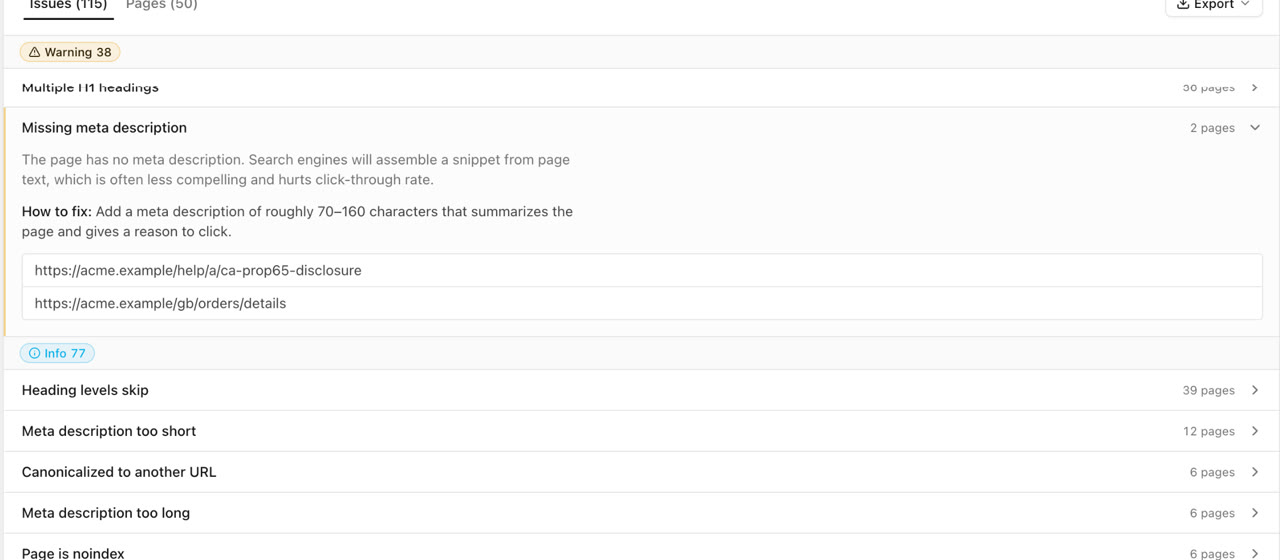
The SEO Sauna site audit covers most of the crawl-based checks above in one run. It crawls the site respecting robots.txt, and checks each page for status codes, broken links, redirect chains, titles and meta descriptions, headings, indexability and canonicals, image alt coverage, internal links and orphan pages, and response time. Lighthouse checks on a sample of pages are optional, and JavaScript rendering can be switched on for sites that need it.
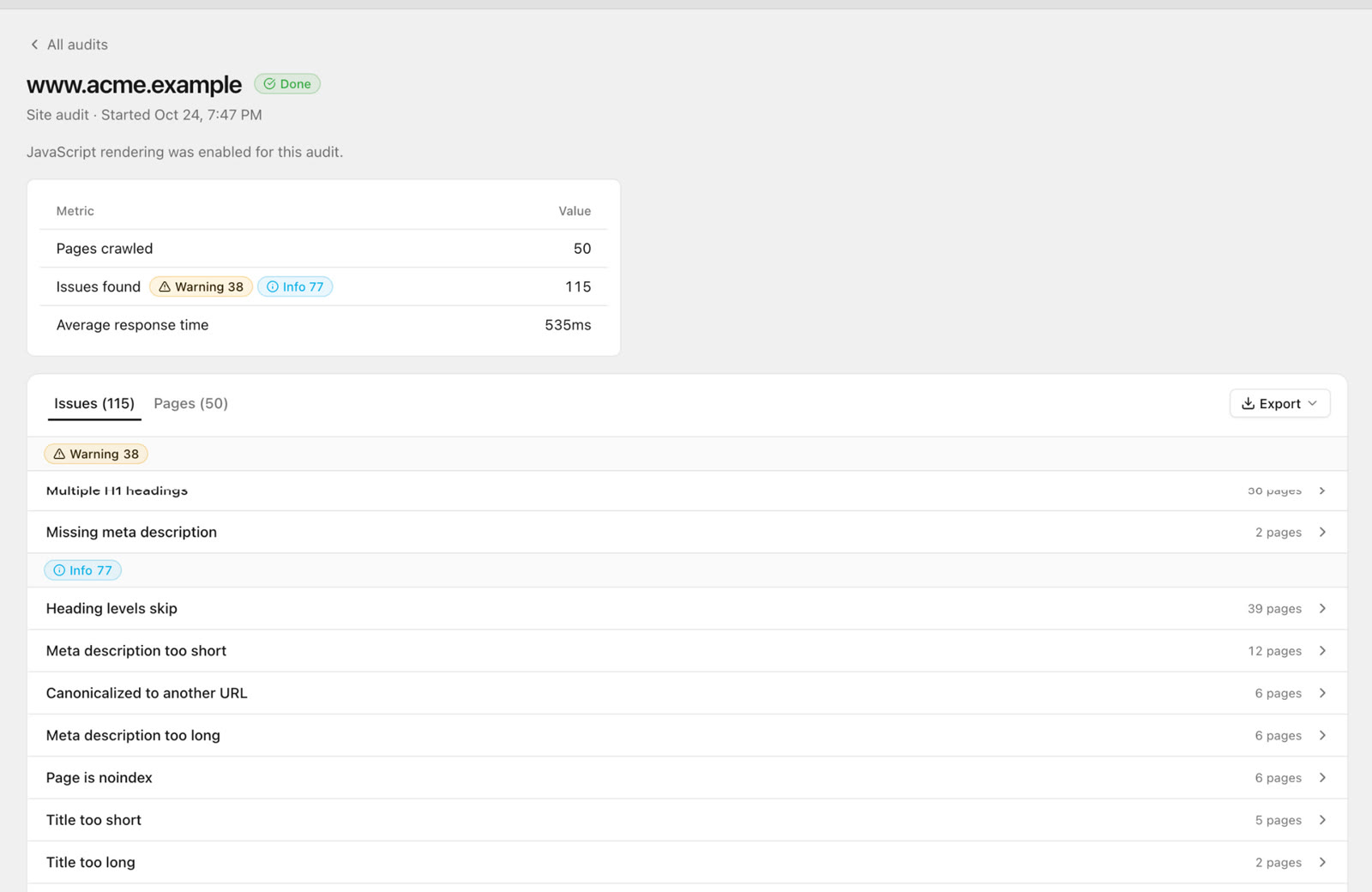
If a site rate-limits the crawler, the audit slows down and retries, and pages it still cannot read are flagged as blocked or rate-limited instead of being reported as broken.
With an AI assistant over MCP
The audit is where the data comes from. Deciding what matters is where an AI assistant helps. Connect SEO Sauna to Claude, ChatGPT, Cursor or Codex through the MCP server and you can run the whole audit from a conversation:
Run a site audit on example.com, up to 500 pages. When it finishes, group the issues by template, ignore anything that affects fewer than three pages, and tell me the five fixes with the biggest impact.
The assistant starts the audit, waits for it, reads the issues and pages, and can then check its conclusions against your Search Console data with URL inspection. Search Console reads use no credits.
For a repeatable version, the SEO Audit skill gives the agent a fixed method: crawl, read prioritised issues, map page families the crawl missed using the sitemap, check rankings against live results, and write a plain-English report saved to your project. That report stays on the project's Reports page for your team or client.
Good prompts for follow-up work
- "Which pages have a canonical that points to a redirect or a 404?"
- "List orphan pages that get impressions in Search Console."
- "Compare the slowest templates and tell me which scripts they share."
- "Inspect these 10 URLs and tell me where Google chose a different canonical."
FAQ
How often should I run a technical SEO audit?
Run a full audit at least quarterly, and always before and after a redesign, migration or platform change. Between audits, watch the Pages and Core Web Vitals reports in Search Console. They show new problems weeks before traffic drops.
What should I fix first?
Fix anything that keeps important pages out of the index: robots.txt blocks, stray noindex tags, broken canonicals and server errors. Then redirects and internal links, then speed and structured data. Indexing problems almost always outweigh everything else.
Do I need a paid tool for a technical SEO audit?
For a small site you can get far with Search Console, Lighthouse and a careful manual review. For anything larger, a crawler saves hours and catches template problems you would miss by hand. SEO Sauna starts free with 1,000 trial credits and no card; the paid plan is €59 a month excluding VAT.
Can an AI assistant do a technical SEO audit?
Not on its own. Without crawl data and Search Console, it can only guess. Connected to real data through MCP, it can run the audit, read the results, cross-check them and explain the priorities, but you should still review its recommendations before changing anything.
Is a technical audit different for Shopify or WordPress?
The checklist is the same, but each platform has its own common problems. Shopify creates duplicate product URLs and throttles audit crawlers, and WordPress sites often have plugin conflicts and thin tag archives. See the Shopify SEO audit guide for the Shopify specifics.
More from the blog
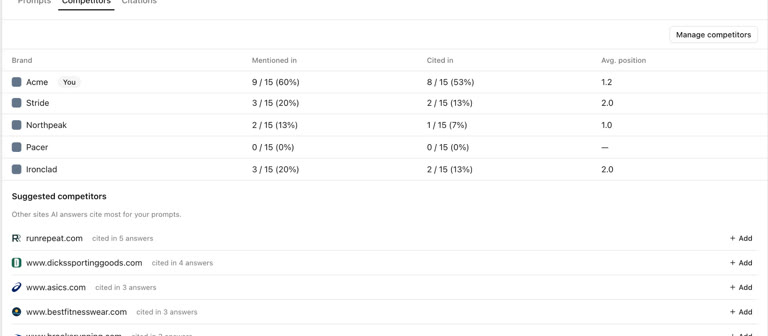 AI discoverability audit: how to run an AI visibility audit
An AI discoverability audit shows whether ChatGPT, Gemini and Google AI name and cite your brand, and why not. Steps, prompts and what to fix first.
AI discoverability audit: how to run an AI visibility audit
An AI discoverability audit shows whether ChatGPT, Gemini and Google AI name and cite your brand, and why not. Steps, prompts and what to fix first.
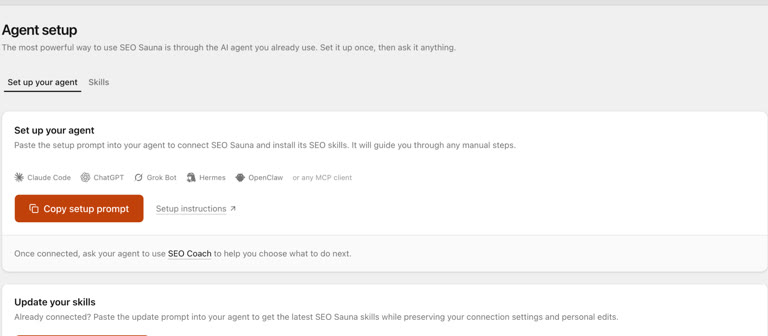 ChatGPT MCP server for SEO: connect live SEO data
Connect an SEO MCP server to ChatGPT as a custom connection on Free or paid plans: step-by-step setup, error fixes and SEO prompts with real keyword data.
ChatGPT MCP server for SEO: connect live SEO data
Connect an SEO MCP server to ChatGPT as a custom connection on Free or paid plans: step-by-step setup, error fixes and SEO prompts with real keyword data.